Tutorial 9 of 9
Work on a deck together in a team workspace
Intermediate 6 min
Save a deck to a shared workspace, edit it with your team live, give viewers read-only access, comment on slides and keep the images.
Decks are saved in your browser. When a talk is a team effort, save the deck to a workspace: everyone in it opens the same deck, sees the others' changes within seconds and can comment on single slides. Without an account nothing changes: Deckwright keeps working as before.
Save the deck to a workspace
- Open the deck you want to share.
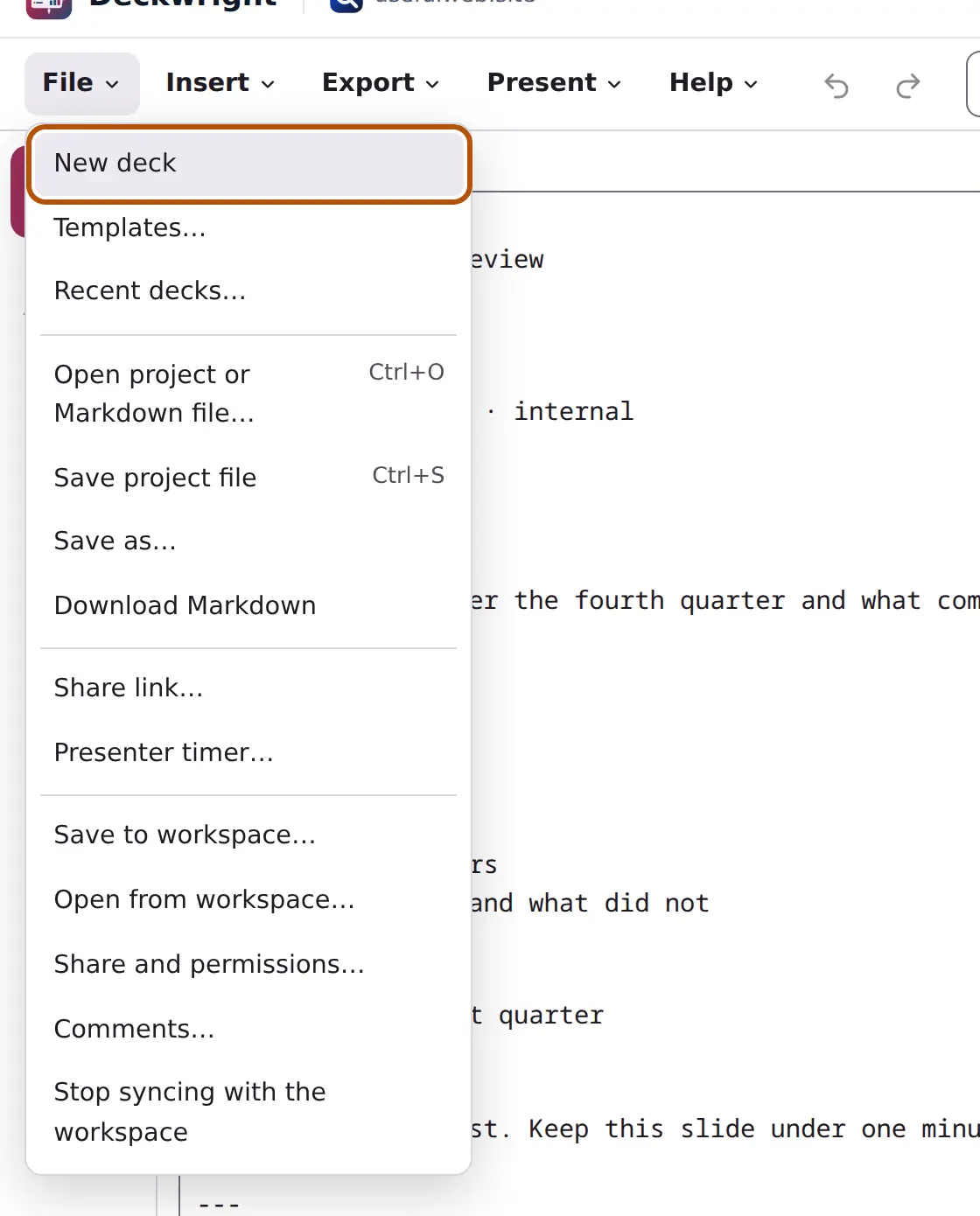
- Choose File → Save to workspace…. If you are not signed in yet, sign in with a passkey (or create an account with one) or with Google.
- Pick a workspace or create a new one, check the title and press Save.
From now on every change is saved to the workspace a moment after you make it. The status chip shows Saved to and the workspace name, and the initials of everyone who has the same deck open right now.
Open a shared deck
Teammates choose File → Open from workspace…, pick the workspace and the deck. A link from the share dialog opens it directly. Next time Deckwright reopens the shared deck on its own as long as you stay signed in.
When someone else saves, your copy updates by itself and the status line names who changed it. If you both changed the deck at the same moment, Deckwright asks what to do: load their version, keep yours and overwrite theirs, or save yours as a copy.
Roles and read-only mode
What people may do depends on their role in the workspace:
- Owners and admins manage everything, including who may open the deck.
- Members edit; they fully manage the decks they saved themselves.
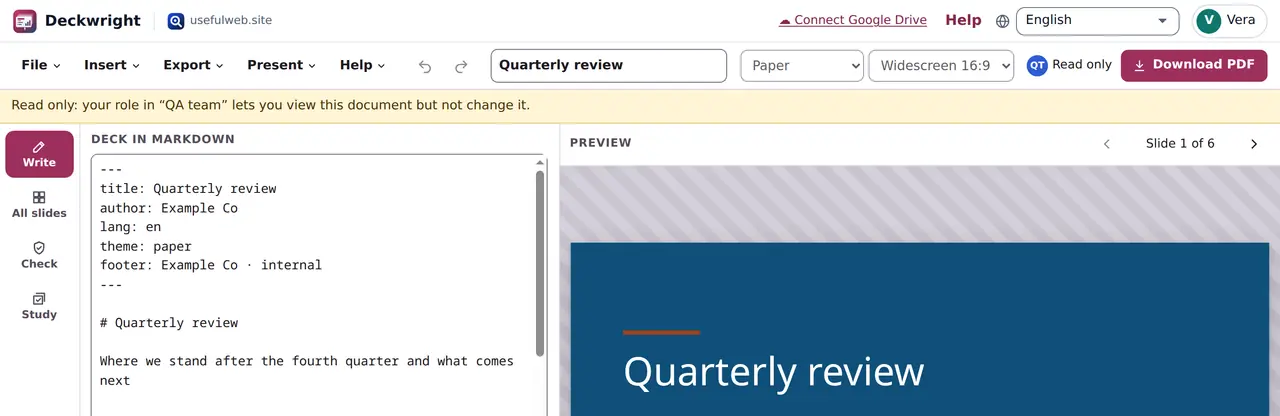
- Viewers read only. A yellow note under the toolbar says so, the status shows Read only, and every change is refused with a short message: the Markdown editor, the deck name, theme and slide shape are locked, the Insert menu is greyed out and Study progress is not recorded. Viewers can still browse, present and export the deck.
Under File → Share and permissions… you invite people with a link, change roles and set rules for this one deck, for example "members may only comment". The dialog also shows the direct link to the deck; whoever opens it signs in and lands right in it.
Comments
Pick a slide in the preview, then File → Comments…. The dialog lists every comment of the deck with the slide it belongs to; your new comment is attached to the slide you are on. Viewers can read comments; commenting needs at least the "comment" access level.
Images travel with the deck
Pictures you added with Insert → Image… are uploaded as attachments of the workspace deck, so teammates see them on their slides and in every export. They count towards the workspace storage (50 MB per workspace). Deleting an image from the Markdown does not remove its upload; a deck you save again as a new workspace document uploads its images again.
Stop syncing
File → Stop syncing with the workspace turns the deck back into a deck of this browser; the shared copy stays in the workspace. Opening another deck, a template or a file does the same for the shared one, so your other work never ends up in it by accident.
Ready to try it?